Help Center帮助中心 Segments分组
Segment Trends分组趋势
Last updated更新于 2026-10-09
Segment Trends turns each of your filter presets into a card, so you can see several slices of your traffic side by side: question queries, long-tail queries, a folder of pages, a country, and so on. The cards use the same preset list as Presets in the toolbar. When you add, edit or delete a preset there, this page updates; how to build presets is described in Filters and presets.
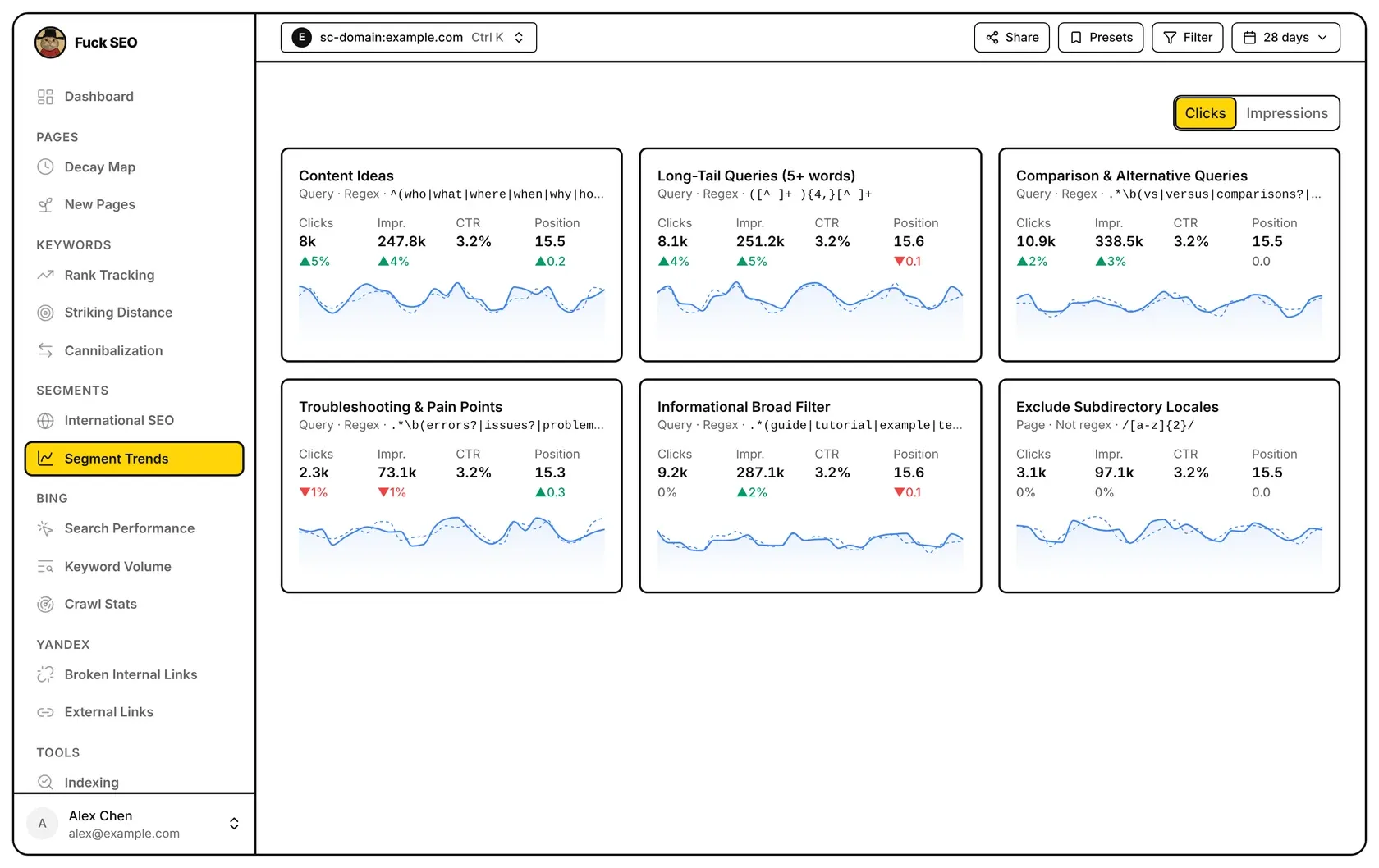
Built-in presets
Until you save your own preset list, six built-in presets are shown:
- Content Ideas: queries that start with a question word such as how, what, why, is or can.
- Long-Tail Queries (5+ words): queries with 5 or more words.
- Comparison & Alternative Queries: queries containing vs, versus, comparison, alternative, best, top, review or difference.
- Troubleshooting & Pain Points: queries containing error, issue, problem, fix, not working, failed, solve or unable to.
- Informational Broad Filter: queries containing guide, tutorial, example, template, case study, ideas or strategy.
- Exclude Subdirectory Locales: hides pages under two-letter folders such as /de/ or /fr/.
If no presets are left, the page shows “No presets yet. Add them under Presets in the toolbar.”
What a card shows
- Name and conditions: below the preset’s name, each condition is written as dimension · operator · expression. A preset can have several conditions, joined with ”+”; a row must match all of them.
- Clicks, Impr., CTR and Position for the selected period. CTR is total clicks ÷ total impressions, and position is the average weighted by impressions.
- Change: under clicks and impressions, the percentage change against the previous period, rounded to a whole percent. Under position, the change in average position: a green ▲ means the position number went down (a higher ranking). CTR has no change figure. A change shows ”—” when the previous period had nothing to compare with.
- Trend chart: the solid line with shading is each day of the selected period; the dashed line is the previous period, lined up day by day (its first day under the first day of the selected period). Hover the chart to see the date and value for both periods.
The Clicks / Impressions switch at the top right changes which metric the charts draw; the numbers on the cards stay the same.
A card loads its data when you scroll it into view. If loading fails, the card shows Retry.
Open a segment on the Dashboard
Click a card to apply its conditions as filters and open the Dashboard. A condition replaces any filter you already had on the same dimension (query, page, country or device); filters on other dimensions stay.
Dates, filters and search type
- The selected period comes from the date menu, including custom ranges, up to 16 months.
- The previous period is always the same number of days right before it. The Comparison Period option in the date menu doesn’t change this page. For periods longer than 240 days there is no previous period, so the changes show ”—” and no dashed line is drawn.
- Filters you add with Filter in the toolbar apply to every card, on top of each preset’s own conditions.
- The Search Type in the date menu applies. Discover has no query or device data, so cards whose preset has a query or device condition show “Discover has no query or device data” and can’t be opened, and query or device filters from the toolbar are left out.
Share in the toolbar opens the share window with this page already ticked as a report section; see Sharing.
分组趋势把你的每个筛选预设做成一张卡片,让你把流量的几个切片并排来看:疑问句查询词、长尾词、某个目录下的页面、某个国家,等等。卡片用的就是工具栏 预设 里的那份清单,在那里新增、修改或删除预设,这个页面会跟着更新;预设怎么建见 筛选和预设。
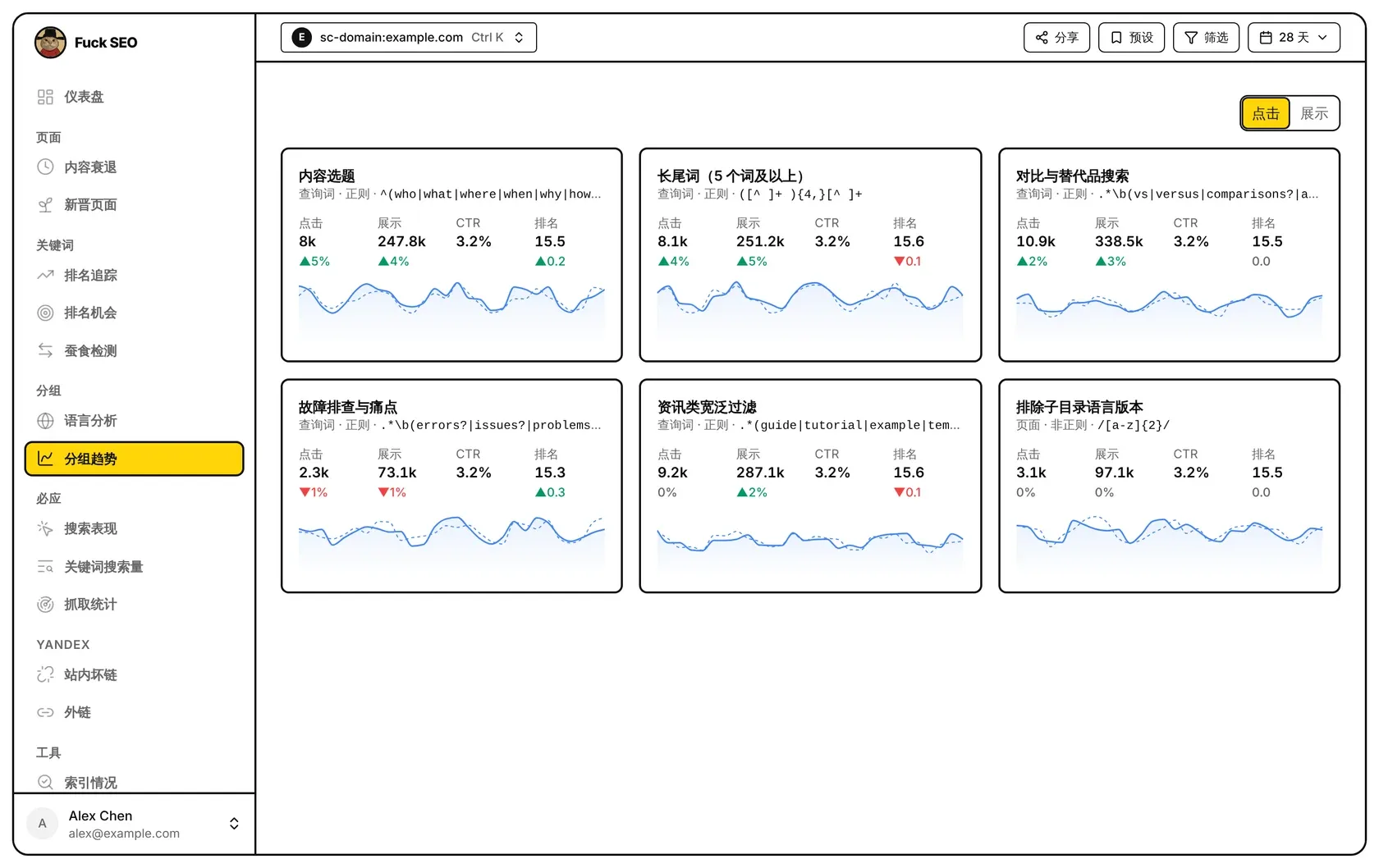
内置预设
在你保存自己的预设清单之前,显示六个内置预设:
- 内容选题:以 how、what、why、is、can 等疑问词开头的查询词。
- 长尾词(5 个词及以上):包含 5 个及以上单词的查询词。
- 对比与替代品搜索:含 vs、versus、comparison、alternative、best、top、review、difference 等词的查询词。
- 故障排查与痛点:含 error、issue、problem、fix、not working、failed、solve、unable to 等词的查询词。
- 资讯类宽泛过滤:含 guide、tutorial、example、template、case study、ideas、strategy 等词的查询词。
- 排除子目录语言版本:排除 /de/、/fr/ 这类两字母子目录下的页面。
如果一个预设都没有,页面会显示「还没有预设,可以在顶部工具栏的「预设」里添加。」
卡片上有什么
- 名称和条件:预设名称下面写着每个条件,格式是 维度 · 条件 · 表达式。一个预设可以有多个条件,用「+」连接,数据要同时满足全部条件。
- 所选期间的 点击、展示、CTR 和 排名。CTR 是总点击 ÷ 总展示,排名是按展示量加权的平均值。
- 变化:点击和展示下面是与上一周期相比的百分比变化,取整到个位。排名下面是平均排名的变化:绿色 ▲ 表示排名数字变小(排得更靠前)。CTR 不显示变化。上一周期没有可比的数据时,变化显示 ”—”。
- 趋势图:带渐变的实线是所选期间的每一天,虚线是上一周期,按第几天对齐(上一周期的第一天对着本期的第一天)。鼠标移到图上,可以看到两个周期对应的日期和数值。
右上角的 点击 / 展示 切换的是小图画哪个指标,卡片上的数字不变。
卡片滚动到可见位置时才加载数据。加载失败时,卡片上会出现 重试。
在仪表盘里打开某个分组
点一张卡片,会把它的条件设为筛选并打开 仪表盘。如果同一个维度(查询词、页面、国家或设备)上已有筛选,会被这个条件替换;其他维度的筛选保留。
日期、筛选和搜索类型
- 所选期间来自日期菜单,包括自定义日期,最长 16 个月。
- 上一周期一律是紧挨在前面、天数相同的一段。日期菜单里的 对比周期 不影响这个页面。期间超过 240 天时没有上一周期,变化显示 ”—“,也不画虚线。
- 用工具栏 筛选 添加的条件对每张卡片都生效,与预设自己的条件叠加。
- 日期菜单里的 搜索类型 生效。Discover 没有查询词和设备数据,所以带查询词或设备条件的预设卡片会显示「Discover 没有查询词和设备数据」,不能点开;工具栏里按查询词和设备的筛选也不生效。
工具栏的 分享 会打开分享窗口,并自动勾上这个页面的报告板块,见 分享。