Help Center帮助中心 Bing必应
Bing Crawl Stats必应抓取统计
Last updated更新于 2026-10-17
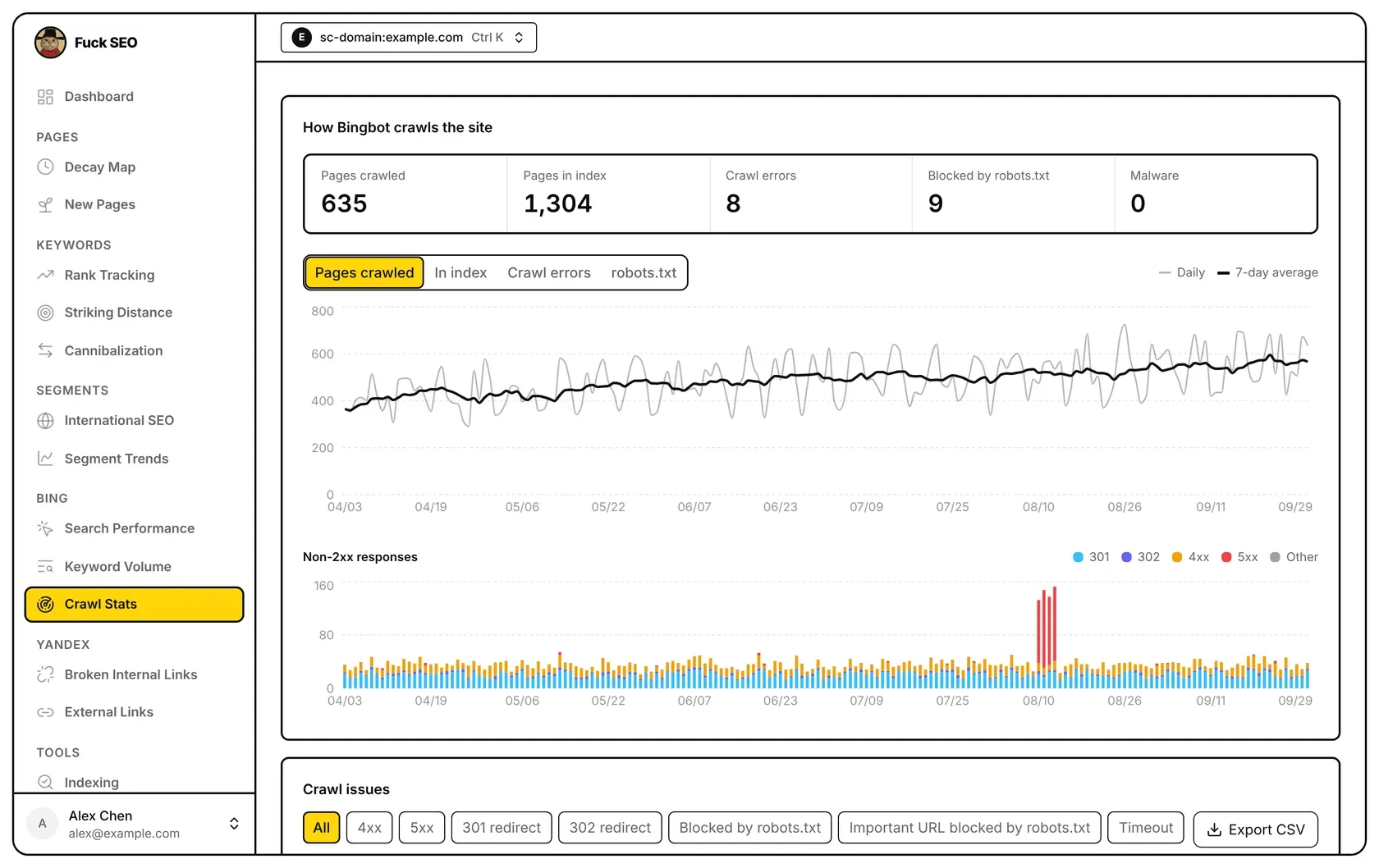
Crawl Stats, in the Bing section of the sidebar, shows how Bing’s crawler, Bingbot, crawls the site: the latest crawl numbers, a daily chart, the non-2xx responses Bing got, the sitemaps submitted to Bing, and the URLs Bing lists with crawl issues. The data comes from your Bing Webmaster Tools account, not from Search Console.
Where the data comes from
- When you open the page, Fuck SEO reads two things from the Bing Webmaster Tools API: Bing’s daily crawl stats for the site and its list of URLs with crawl issues. Once those are shown, it reads the list of sitemaps submitted to Bing for the site.
- Access is read-only: Fuck SEO can’t change anything in your Bing account.
- Bing’s data isn’t stored in our database. The response is kept on our server until the end of the day (China Standard Time) for the same site, so opening the page again that day shows the same numbers.
- The page has no date menu, Filter or Presets. It always shows every day Bing returns, about the last six months.
- There is no Share button on this page, and interactive share links don’t include the Bing pages.
If the Bing API returns an error, the page shows it, with Bing’s own message, and a Retry button.
Connect Bing
Until you connect, the page shows Connect Bing Webmaster Tools. Click Connect Bing and allow access on Bing’s page; you then come back to the page you started from. One connection covers all the Bing pages for all your sites.
You can also connect from the Bing Webmaster Tools card in Settings (in the account menu at the bottom of the sidebar). Once connected, the card shows when you connected and how many sites are in your Bing account. Disconnect deletes the Bing authorization Fuck SEO saved, and the Bing pages show the connect panel again.
The authorization is saved encrypted on our server. If Bing no longer accepts it, for example because access was removed on Bing’s side, the page shows the connect panel again.
Which Bing site is used
Bing Webmaster Tools has its own list of sites. The page matches this Search Console property against it:
- URL-prefix property: the Bing site with the same address, ignoring letter case and a trailing slash.
- Domain property: every Bing site on the domain or one of its subdomains. The one on the domain itself comes first, then the
www.one, with https before http.
If nothing matches, the page says This site isn’t in your Bing account and shows no data until the site is in Bing Webmaster Tools.
When several Bing sites match, a Bing site row above the stat boxes lists them, and the first one is used. Click another one to switch. Your choice is remembered in this browser for this property, and the other Bing pages, Search Performance and Keyword Volume, use the same choice.
Stat boxes
Under How Bingbot crawls the site, five boxes show Pages crawled, Pages in index, Crawl errors, Blocked by robots.txt and Malware.
Each box shows the number for the latest day in Bing’s daily data; days aren’t added up. Bing doesn’t document whether a day’s number is that day’s count or a running total. When Bing has no daily data, the boxes show ”—”.
Charts
The first chart shows one number per day. Choose it with the buttons above the chart: Pages crawled (the default), In index, Crawl errors or robots.txt.
- For Pages crawled, Crawl errors and robots.txt, a faint line shows each day’s number and a bold line the 7-day average: the average of that day and the 6 days before it (fewer at the start, before there are 7 days).
- In index has a single line, and its vertical axis fits the range of the numbers instead of starting at zero.
- Hover the chart to see the date, the number and, where there is one, the 7-day average.
Below it, Non-2xx responses stacks, for each day, Bing’s numbers of 301, 302, 4xx, 5xx and Other responses. Hover a bar to see the date, the 2xx number and each of these.
When Bing has no daily data for the site, the charts are replaced by “Bing has no daily data for this site yet”.
Sitemaps submitted to Bing
This section lists the sitemaps submitted for the site in Bing Webmaster Tools, in the order Bing returns them. It shows Bing’s records, not the sitemaps submitted in Search Console. The table has six columns:
- Sitemap: the address without
https://(orhttp://) and the trailing slash. - Type: the type Bing gives. A type containing “index” shows as Sitemap index.
- Status: the status Bing gives, as Bing writes it.
- URLs: the number of URLs Bing gives for the sitemap.
- Last crawled and Submitted: the dates Bing gives for its last crawl of the sitemap and for its submission, or ”—” when there is none.
A sitemap index has an arrow in front of it. Click it to read and list the sitemaps in the index, and click again to collapse them. If reading them fails, the error shows where they would be.
If no sitemaps were submitted to Bing for the site, the section says “No sitemaps submitted to Bing for this site”. If the list can’t be read, the section shows the error and a Retry button.
Crawl issues
Crawl issues lists the URLs Bing reports problems for. The table has four columns:
- URL: the address without
https://(orhttp://) and the trailing slash. - HTTP: the status code Bing reports; ”—” when there is none.
- Issue: one tag per issue. A URL can have several.
- Links: the number of inbound links Bing reports for the URL.
The issues, in the order the filter buttons use: 4xx, 5xx, 301 redirect, 302 redirect, Blocked by robots.txt, Important URL blocked by robots.txt, DNS error, Timeout and Malware.
Rows are sorted by Links, most first; the order can’t be changed. Rows load 50 at a time as you scroll.
The buttons above the table filter it: All, plus one button for each issue that at least one URL has. A URL with several issues appears under each of them. When Bing lists no URLs, the panel says “Bing lists no crawl issues for this site”.
Export CSV downloads every row that matches the selected filter, with URL, HTTP, Issues (the issue names in English, separated by semicolons) and Inbound links. The button isn’t shown on phones.
On phones
The stat boxes show two per row, and the chart buttons sit in two rows. In the sitemaps table each sitemap address takes its own line, with the status, URLs and last crawled date on the line below; the type and submitted date aren’t shown. In the crawl issues table each URL takes its own line, with the status code, issues and links on the line below.
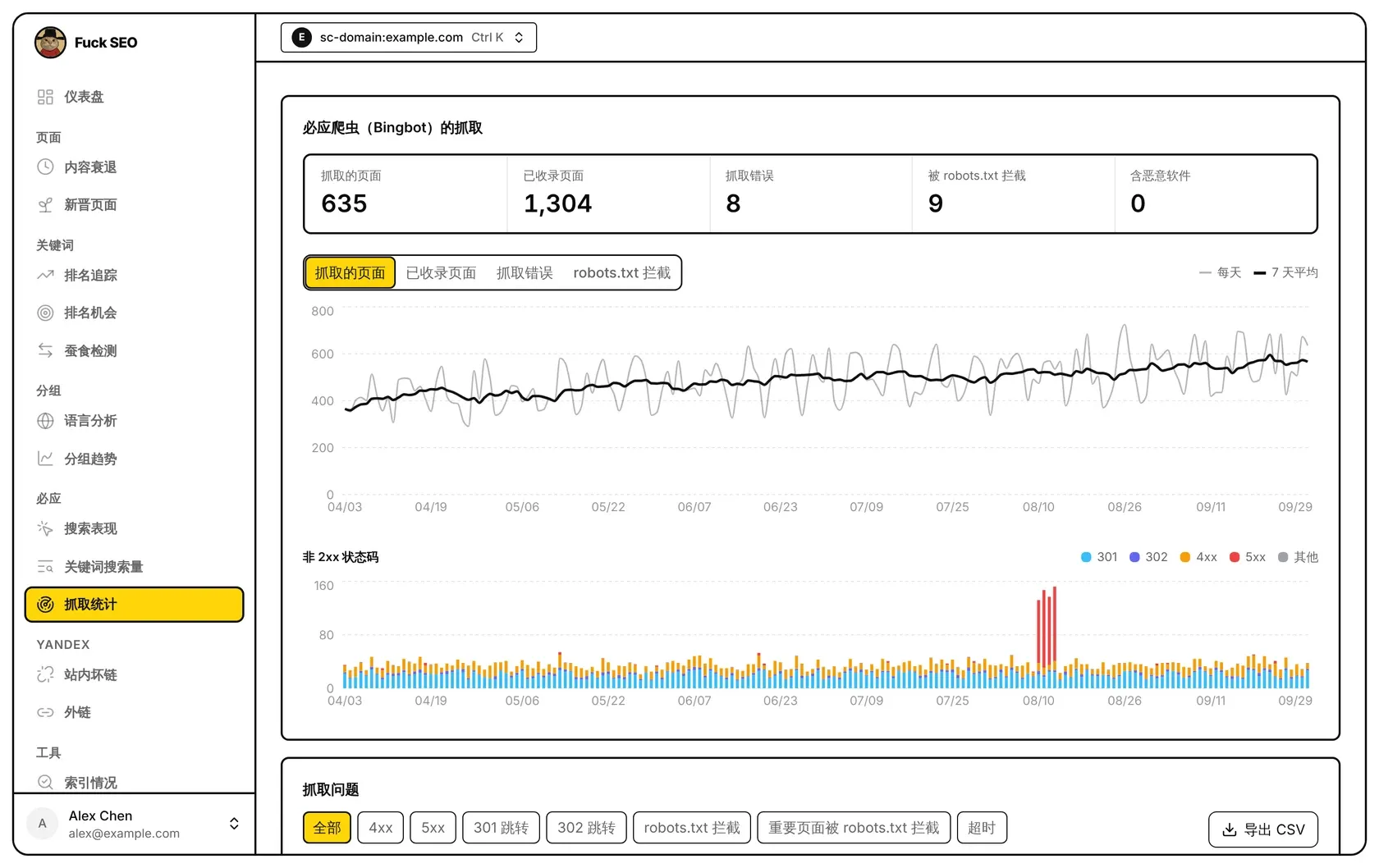
抓取统计在侧边栏的 必应 分组里,显示必应的爬虫 Bingbot 怎样抓取这个站:最新的抓取数字、每天的趋势图、必应收到的非 2xx 状态码、提交给必应的 sitemap,以及必应列出的有抓取问题的网址。数据来自你的必应 Webmaster Tools 账号,不是 Search Console。
数据来源
- 打开页面时,Fuck SEO 从必应 Webmaster Tools 接口读取两样东西:必应对这个站每天的抓取统计,以及有抓取问题的网址列表。这些显示出来以后,再读取这个站提交给必应的 sitemap 列表。
- 权限是只读的,Fuck SEO 无法修改你必应账号里的任何东西。
- 我们的数据库不保存必应的数据。同一个站的接口结果在我们的服务器上保留到当天结束(北京时间),所以当天再次打开页面看到的是同样的数字。
- 这个页面没有日期菜单、筛选 和 预设,始终显示必应返回的全部日子,约为最近 6 个月。
- 这个页面没有 分享 按钮,互动分享链接里也没有必应的页面。
必应接口出错时,页面显示错误信息(带上必应的原话)和 重试 按钮。
连接必应
还没连接时,页面显示 连接必应 Webmaster Tools。点 连接必应,在必应的页面上允许访问,之后会回到你出发的那个页面。连接一次,所有站点的必应页面都能用。
也可以在 系统设置(侧边栏底部的账号菜单里)的 Bing Webmaster Tools 卡片里连接。连接后,卡片显示连接日期和你必应账号里有几个站点。点 断开 会删除 Fuck SEO 保存的必应授权,必应的页面重新显示连接提示。
必应授权加密保存在我们的服务器上。必应不再接受这个授权时(例如在必应那边取消了访问),页面会重新显示连接提示。
用哪个必应站点
必应 Webmaster Tools 有自己的站点列表,页面用这个 Search Console 资源去对应:
- 网址前缀资源:地址相同的必应站点,不区分大小写,也不管结尾的斜杠。
- 网域资源:这个域名及其子域名下的所有必应站点。域名本身的排在最前,其次是
www.的,同一个主机名 https 排在 http 前面。
一个都对应不上时,页面显示 你的必应账号里没有这个站,站点加到必应 Webmaster Tools 之后才有数据。
对应上好几个必应站点时,统计格子上方有一行 必应站点 列出它们,默认用第一个,点另一个即可切换。你的选择按 Search Console 资源记在这个浏览器里,另外两个必应页面 搜索表现 和 关键词搜索量 也用同一个选择。
统计格子
必应爬虫(Bingbot)的抓取 下面的五个格子是 抓取的页面、已收录页面、抓取错误、被 robots.txt 拦截 和 含恶意软件。
每个格子显示必应每日数据里最后一天的数字,不把各天加起来。必应的文档没有说明某一天的数字是当天的量还是累计数。必应没有每日数据时,格子显示 ”—“。
趋势图
第一张图每天一个数字,用图上方的按钮选择:抓取的页面(默认)、已收录页面、抓取错误 或 robots.txt 拦截。
- 抓取的页面、抓取错误 和 robots.txt 拦截 有两条线:浅色的是每天的数字,粗线是 7 天平均,即当天和前 6 天的平均(开头不满 7 天时用已有的几天)。
- 已收录页面 只有一条线,纵轴按数字的范围显示,不从 0 开始。
- 鼠标移到图上可以看到日期、数字,以及 7 天平均(有的话)。
下面的 非 2xx 状态码 按天把必应给出的 301、302、4xx、5xx 和 其他 状态码的数量叠成柱子。鼠标移到柱子上可以看到日期、2xx 的数量和这几项各自的数量。
必应还没有这个站的每日数据时,两张图的位置显示「必应还没有这个站的每日数据」。
提交给必应的 sitemap
这一块列出这个站在必应 Webmaster Tools 里提交的 sitemap,按必应返回的顺序排列。它显示的是必应那边的记录,和 Search Console 里提交的 sitemap 无关。表格有六列:
- Sitemap:去掉
https://(或http://)和结尾斜杠的地址。 - 类型:必应给出的类型。类型里带 index 的显示为 Sitemap 索引。
- 状态:必应给出的状态。
Success显示为 成功,其他状态原样显示必应的英文。 - 网址数:必应给出的这个 sitemap 里的网址数。
- 最近抓取、提交日期:必应给出的最近抓取这个 sitemap 的日期和提交日期,没有时显示 ”—”。
Sitemap 索引前面有箭头,点一下展开,读取并列出索引里的 sitemap,再点一下收起。读取出错时,展开的位置显示错误信息。
这个站没有向必应提交 sitemap 时,这里显示「这个站没有向必应提交 sitemap」。读取 sitemap 列表出错时,这一块显示错误信息和 重试 按钮。
抓取问题
抓取问题 列出必应报告有问题的网址。表格有四列:
- 网址:去掉
https://(或http://)和结尾斜杠的地址。 - 状态码:必应给出的 HTTP 状态码,没有时显示 ”—”。
- 问题:每个问题一个标签,一个网址可以同时有好几个。
- 外链数:必应给出的指向这个网址的入站链接数。
问题共有以下几种,筛选按钮也按这个顺序排列:4xx、5xx、301 跳转、302 跳转、robots.txt 拦截、重要页面被 robots.txt 拦截、DNS 错误、超时 和 含恶意软件。
表格按 外链数 从多到少排列,不能改变排序。往下滚动时每次多加载 50 行。
表格上方的按钮用来筛选:全部,以及至少有一个网址出现的每种问题各一个按钮。有好几个问题的网址会出现在每个对应的按钮下。必应没有列出任何网址时,这里显示「必应没有列出抓取问题」。
导出 CSV 下载符合当前筛选的所有行,包含 URL、HTTP、Issues(问题名称为英文,用分号隔开)和 Inbound links 四列。手机上不显示这个按钮。
手机上
统计格子每行两个,图上方的按钮排成两行。sitemap 表里每个 sitemap 的地址单独占一行,状态、网址数和最近抓取在下一行,不显示类型和提交日期。抓取问题表里每个网址单独占一行,状态码、问题和外链数在下一行。