Help Center帮助中心 Keywords关键词
Rank Tracking排名追踪
Last updated更新于 2026-10-09
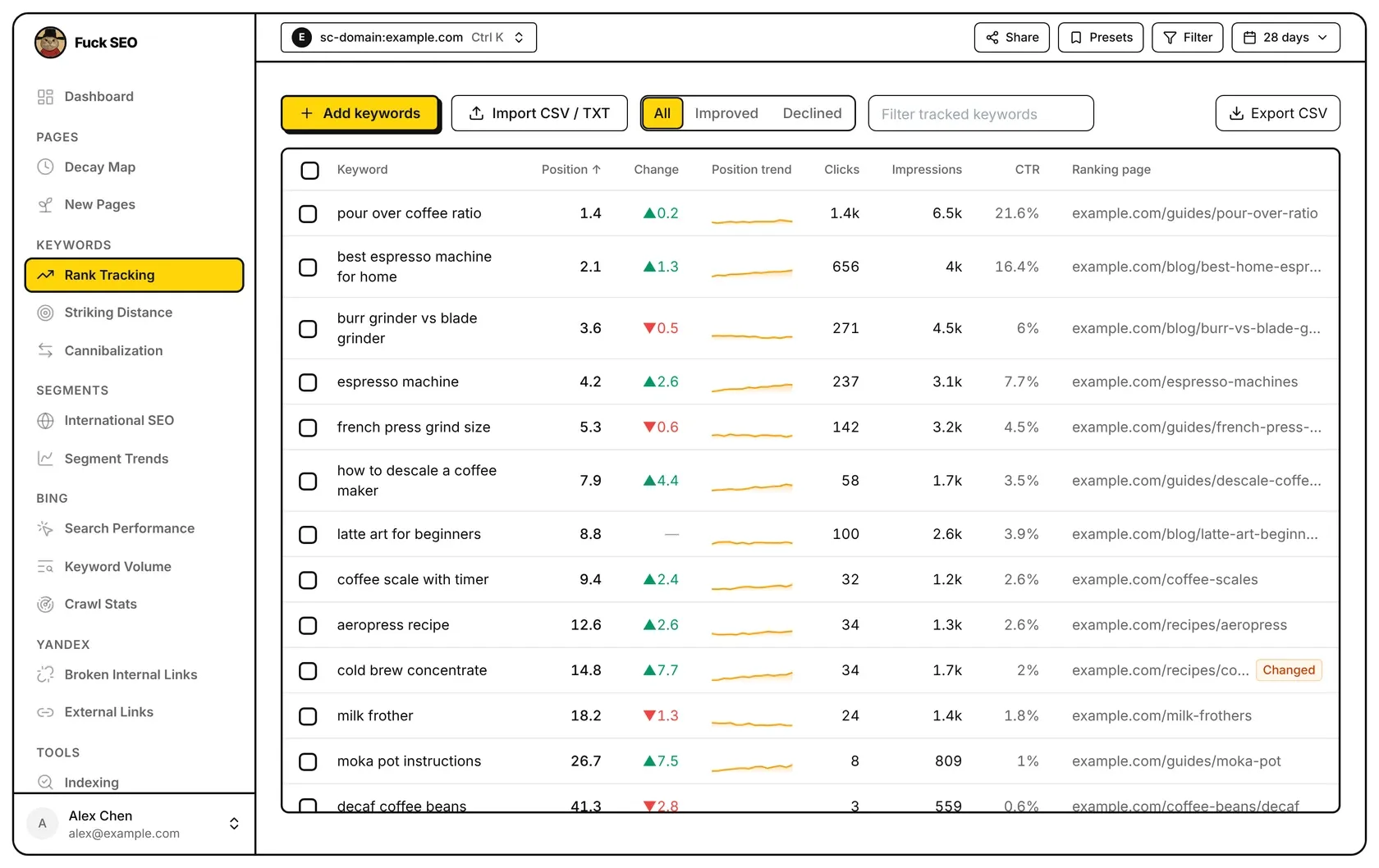
Rank Tracking shows only the keywords you chose, each with its average position for the selected period, the change against the period before, a position trend and the page that ranks for it. Only the list of keywords is saved; the numbers are read live from Search Console every time you open the page.
Add keywords
Click Add keywords and type in the search box (Search your site’s queries). It lists up to 50 of your site’s queries that contain the text in the selected date range, by impressions, with their position and impressions. Click Add next to a query; tracked ones show Tracked. When no result is exactly your text, the list ends with Add “…”, which tracks what you typed even if Search Console has no data for it yet (Enter does the same). Close with Done and the table reloads.
You can also click Track ranking in the query detail panel, for example after clicking a query on the Dashboard.
Keywords are saved in lower case with extra spaces removed and must match a Search Console query exactly, ignoring case. Each site can track up to 1,000 keywords of up to 200 characters each.
Import a list
Import CSV / TXT opens Import keywords. Choose or drop a file (CSV, TSV or TXT, up to 5 MB), or paste keywords one per line.
- CSV: the separator (comma, semicolon or tab) is detected automatically. In a file with several columns, the first 10 rows are searched for a column named Keyword, Keywords, Query, Queries, Top queries, Search term or Search query (or the Chinese equivalents), so exports from Ahrefs, Semrush, SE Ranking, Keyword Planner and Search Console work as they are. Without one, the first column is read.
- TXT or pasted text: one keyword per line; commas stay part of the keyword.
- Excel: save as CSV first.
Before anything is added you see how many unique keywords were found, how many are new and how many are already tracked, with a preview of up to 100. Duplicates and keywords over 200 characters are dropped, and keywords past the 1,000 limit are left out from the end of the list. The Import button shows how many will be added. Import isn’t available on phones.
What each column shows
The period is the date range in the top bar; the previous period is the same number of days right before it.
- Position: the average position Search Console recorded across all impressions in the period, weighted by impressions. It isn’t a live position at a single moment. ”—” means no impressions in the period.
- Change: this period’s position minus the previous period’s. A green ▲ means the position number went down (closer to the top), a red ▼ that it went up. Hover to see the previous position. ”—” when either period has no impressions.
- Position trend: one point per day for ranges up to 90 days, one per 7 days for longer ranges, skipping points with no impressions. Higher on the line means a better position.
- Clicks, Impressions and CTR (clicks ÷ impressions) for the period.
- Ranking page: the page with the most impressions for the keyword in the period. Changed appears when a different page led in the previous period; hover it to see which.
For ranges longer than 240 days there is no previous period (Search Console keeps about 16 months of data), so Change shows ”—” and the All / Improved / Declined switch is hidden.
Keywords with no impressions show ”—” until they get some. Search Console leaves out very rare queries to protect user privacy, so some keywords may never show data.
Click a row to open the keyword’s detail panel, which starts on the position chart.
Filter and sort
- Improved lists keywords whose position number went down, Declined those whose number went up, each with the largest change first. All shows everything.
- Filter tracked keywords keeps the keywords that contain the text you type.
- Click Position, Change, Clicks, Impressions or CTR to sort, and again to reverse. The default is Position, best first. Keywords without a value stay at the bottom.
Filters from Filter or Presets and the Search Type in the date menu also apply. Discover has no query data, so this page works with Web, Image, Video and News only.
Stop tracking
Tick the boxes in front of keywords, or the header box to select every keyword in the current list, including rows you haven’t scrolled to. Then click Stop tracking. The message that follows has an Undo button that adds them back.
Export
Export CSV downloads the current list in its current order, with Keyword, Position, Previous Position, Position Change, Clicks, Impressions, CTR, Ranking Page and Previous Ranking Page. The button isn’t shown on phones.
People who open an Interactive link to the site (see Sharing) see your tracked keywords but can’t add, import or remove any.
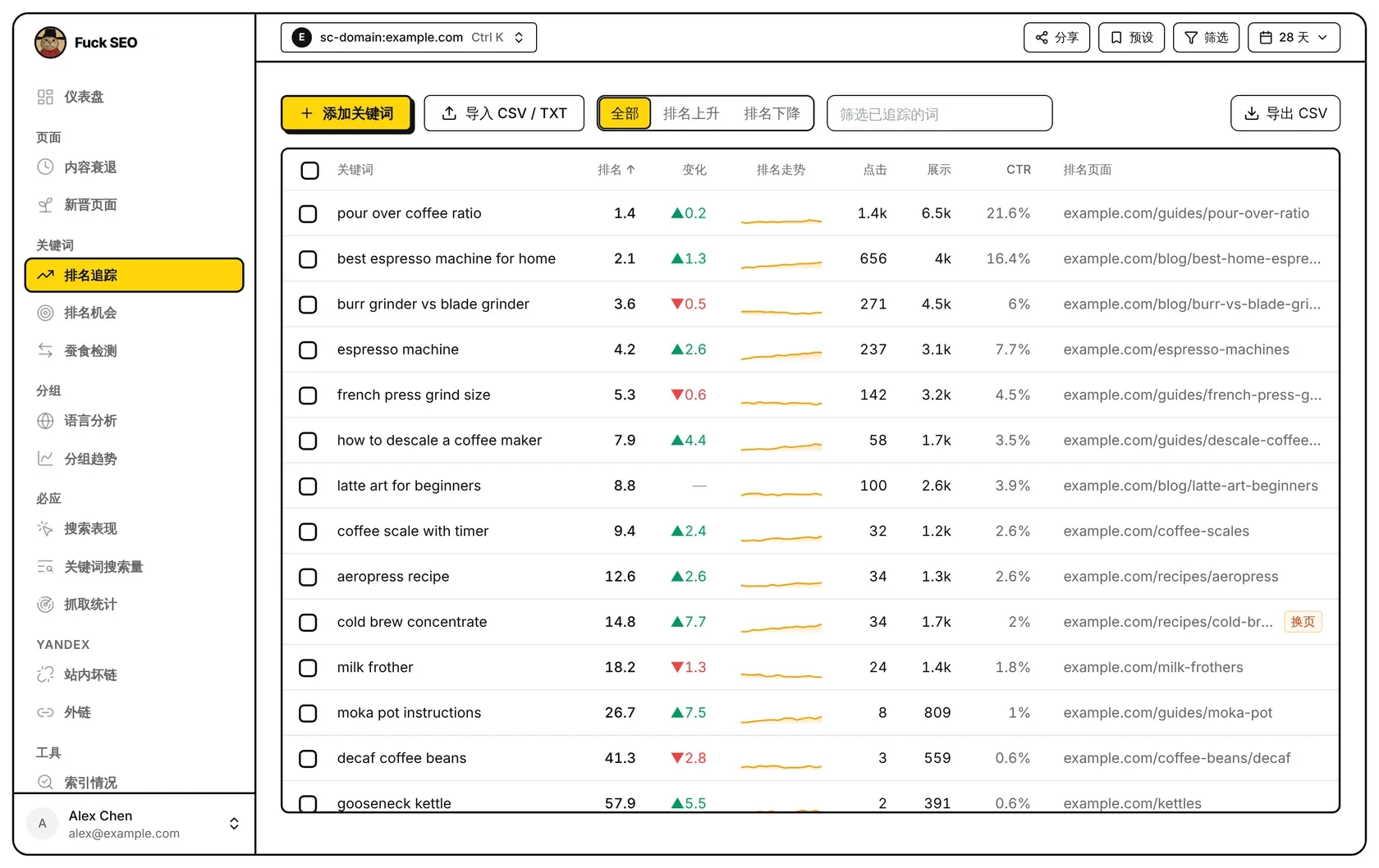
排名追踪只显示你挑选的关键词:每个词在所选周期内的平均排名、和上一周期相比的变化、排名走势,以及为它排名的页面。我们只保存关键词清单,数字每次打开页面时都向 GSC 实时读取。
添加关键词
点 添加关键词,在搜索框(搜索本站的查询词)里输入文字。下面会列出所选日期范围内包含这段文字的本站查询词,按展示量排序,最多 50 个,并显示排名和展示数。点查询词旁边的 添加 即可;已经在追踪的显示 已追踪。如果结果里没有和你输入的文字完全一样的词,列表最后会出现 添加「…」,直接追踪你输入的内容,即使 GSC 里暂时没有它的数据(按 回车 效果相同)。点 完成 关闭,表格会重新加载。
也可以在查询词的详情面板里点 加入排名追踪,例如在 仪表盘 点开某个查询词之后。
关键词保存时统一转成小写、去掉多余空格,需要和 GSC 里的查询词完全一致(不区分大小写)。每个站点最多追踪 1,000 个关键词,每个不超过 200 个字符。
导入清单
导入 CSV / TXT 会打开 导入关键词 窗口。可以选择或拖入文件(CSV、TSV 或 TXT,不超过 5 MB),也可以直接粘贴关键词,每行一个。
- CSV:自动识别分隔符(逗号、分号或 Tab)。多列的文件会在前 10 行里找名为 Keyword、Keywords、Query、Queries、Top queries、Search term、Search query 或关键词、关键字、查询、查询词、热门查询、搜索词、搜索字词的列,所以 Ahrefs、Semrush、SE Ranking、Keyword Planner 和 GSC 导出的 CSV 可以直接用。找不到这样的列时读取第 1 列。
- TXT 或粘贴的文字:每行一个关键词,词里的逗号原样保留。
- Excel:请先另存为 CSV。
导入前会显示识别到多少个不重复的关键词、其中新增多少个、已在追踪多少个,并预览最多 100 个。重复的词和超过 200 个字符的词会被去掉;超出 1,000 个上限的部分,从清单末尾开始不导入。导入 按钮上会显示将要添加的数量。手机上不提供导入。
各列含义
周期是顶部选择的日期范围;上一周期是紧挨在它之前、天数相同的一段。
- 排名:GSC 记录的该词在周期内所有展示的平均位置,按展示量加权,不是某一时刻的实时排名。显示 ”—” 表示周期内没有展示。
- 变化:本期排名减去上期排名。绿色 ▲ 表示排名数字变小(更靠前),红色 ▼ 表示排名数字变大。鼠标移上去可以看到上期排名。任一期没有展示时显示 ”—”。
- 排名走势:日期范围在 90 天以内时每天一个点,更长时每 7 天一个点,没有展示的点跳过。线越高表示排名越靠前。
- 点击、展示 和 CTR(点击 ÷ 展示):周期内的合计。
- 排名页面:周期内这个词展示最多的页面。上一周期展示最多的是另一个页面时,旁边会显示 换页,鼠标移上去可以看到上期是哪个页面。
日期范围超过 240 天时没有上一周期(GSC 只保留约 16 个月数据),变化 显示 ”—“,全部 / 排名上升 / 排名下降 切换也会隐藏。
在 GSC 里没有展示的词显示 ”—“,有展示后会自动出现数据。GSC 会隐去搜索量很低的查询词以保护用户隐私,这类词可能一直没有数据。
点一行打开这个关键词的详情面板,面板默认显示排名曲线。
筛选和排序
- 排名上升 列出排名数字变小的词,排名下降 列出排名数字变大的词,都按变化幅度从大到小排列。全部 显示所有词。
- 筛选已追踪的词:只保留包含所输入文字的关键词。
- 点 排名、变化、点击、展示 或 CTR 排序,再点一次反向排列。默认按 排名 从靠前到靠后。没有数值的词始终排在最后。
筛选、预设 里的条件和日期菜单里的 搜索类型 同样生效。Discover 没有查询词数据,这个页面只适用于网页、图片、视频和新闻。
停止追踪
勾选关键词前面的方框,或者勾选表头的方框,选中当前列表里的全部关键词(包括还没滚动到的行),然后点 停止追踪。随后出现的提示里有 撤销 按钮,点一下就把这些词加回来。
导出
导出 CSV 按当前排序下载当前列表,包含关键词、排名、上期排名、排名变化、点击、展示、CTR、排名页面和上期排名页面。手机上不显示这个按钮。
通过这个站点的 互动链接(见 分享)打开的人能看到你追踪的关键词,但不能添加、导入或删除。