Help Center帮助中心 Tools工具
Change Notes变更笔记
Last updated更新于 2026-10-09
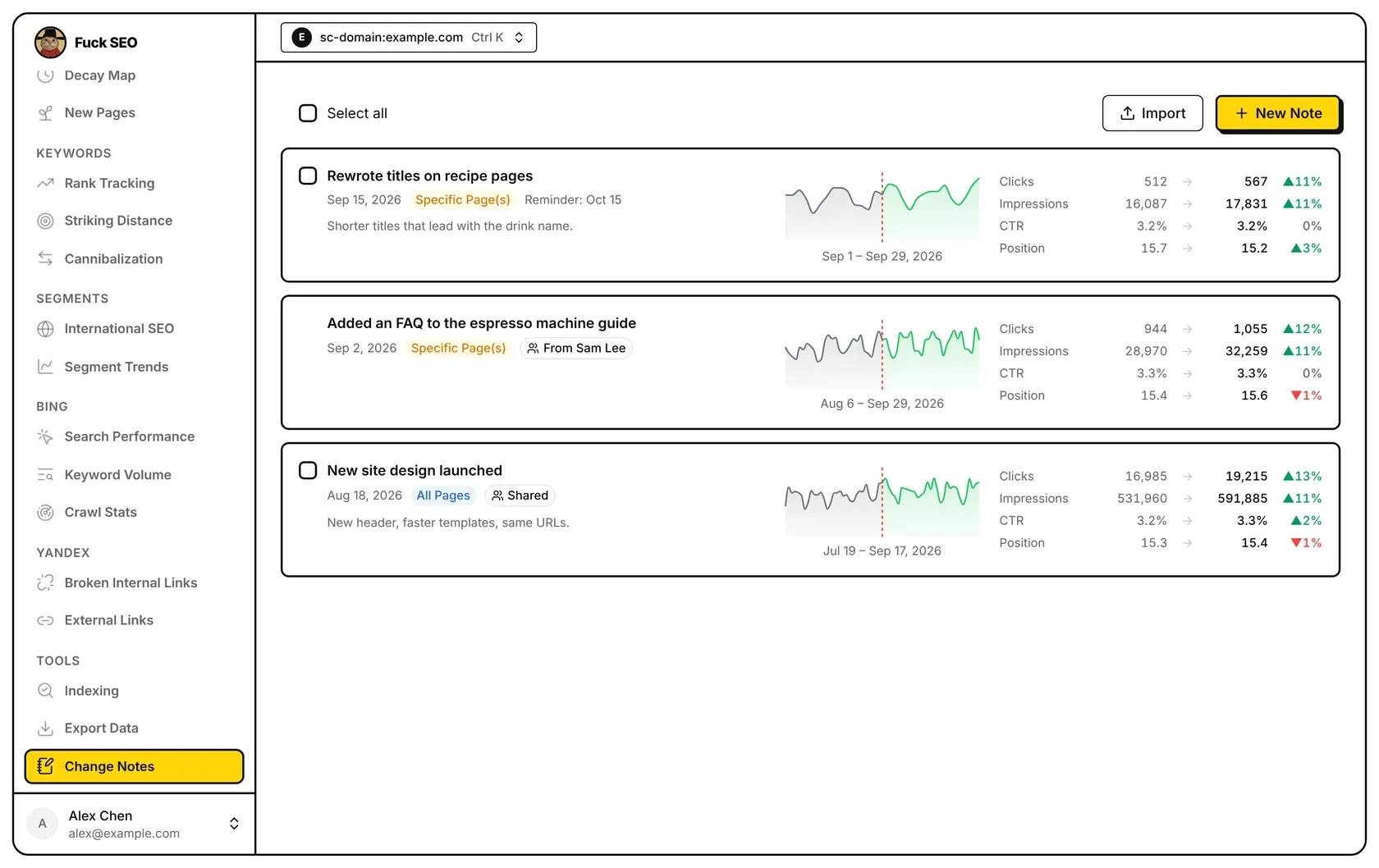
Change Notes is a dated log of changes to your site. Each note’s card compares Search Console numbers for the same number of days before and after the note’s date, for the whole site or only the pages the note is about. Notes are listed newest first.
Create a note
Click New Note. The form has:
- The date of the change, which starts on today.
- Title (required) and Description (optional).
- Applies to: All Pages, or Specific Page(s) with full URLs, one per line. With specific pages, the comparison counts only those exact URLs.
- Who can see it: Only me, or People with access to this site (see below).
- Remind me to review: Off, 7 days, 14 days or 28 days after the note’s date, or Pick date (up to 180 days from today). New notes start on 28 days unless that day has passed; days already passed can’t be picked.
There are two other ways to start a note:
- On the Dashboard, on a computer (not on touch screens), click a day on the main chart to open a new note for that date. Notes inside the chart’s range appear as small “N” markers on it; click one to open the note.
- In a page’s detail panel, Add a note opens a new note set to Specific Page(s) with that page’s URL filled in.
The note card
- Left: the title, the date, an All Pages or Specific Page(s) tag, a sharing tag, the reminder date and the description. Hover the card for Edit and Delete (on touch screens they are always shown). After a delete, the message at the bottom offers Undo.
- Middle: daily clicks, grey before the note’s date and green from that date on, with a red dashed line on the note’s date. The dates covered are shown underneath; hover for a day’s clicks.
- Right: Clicks, Impressions, CTR and Position, before → after, with the percentage change. A green ▲ is an increase, except for position, where it means the position number went down (a higher ranking). The change shows ”—” when the before value is 0, and CTR and position show ”—” for a period with no impressions.
How before and after are counted
- After starts the day after the note’s date. It runs until your reminder date if you set one, otherwise for 30 days, and never past the latest day with final data, so a recent note has a shorter after period.
- Before has the same number of days as after and ends the day before the note’s date. The note’s own date is in neither period.
- If there is no data after the note yet, the card shows no comparison.
- The numbers are Web search data. CTR is total clicks ÷ total impressions, and position is the average weighted by impressions.
Reminders
On the reminder date, a red count appears on Change Notes in the sidebar, and the site’s card on the home page shows Note reminders with the number. Opening Change Notes clears the count; the due notes move to the top with a Due tag while you stay on the page. Changing a note’s reminder date sets a new reminder. Reminders only go to the note’s author.
Share notes with the site’s members
With People with access to this site, Fuck SEO users whose Google account can access the same Search Console property see the note and your name (or your email, if your Google account has no name). For them the card is tagged From and your name, and View opens it read-only; only you can edit or delete it. For you it is tagged Shared. They don’t see your reminder date, and their cards always use a 30-day after period.
Select several notes
Tick your own notes, or Select all, then choose Share, Stop sharing or Delete. Notes other people shared can’t be selected. Deleting several notes asks for confirmation and can’t be undone.
Import notes
Import (not shown on phones) adds notes from a CSV or TSV file, or from rows pasted from a spreadsheet; save Excel files as CSV first. The columns, in order, are date, title, description and page URLs, and the last two can be empty. With a header row, columns are matched by name (date / title / description / pages). Dates look like 2026-10-03 or 2026/10/3. Rows with page URLs become Specific Page(s) notes, with several URLs separated by spaces or |; the rest become All Pages notes.
A preview counts the new notes, the duplicates (same date and title as one of your notes), rows dated more than 480 days ago and rows that can’t be imported. Only new notes are added, up to 500 at a time. Imported notes have no reminder and are visible only to you.
Notes dated more than 480 days ago are deleted automatically.
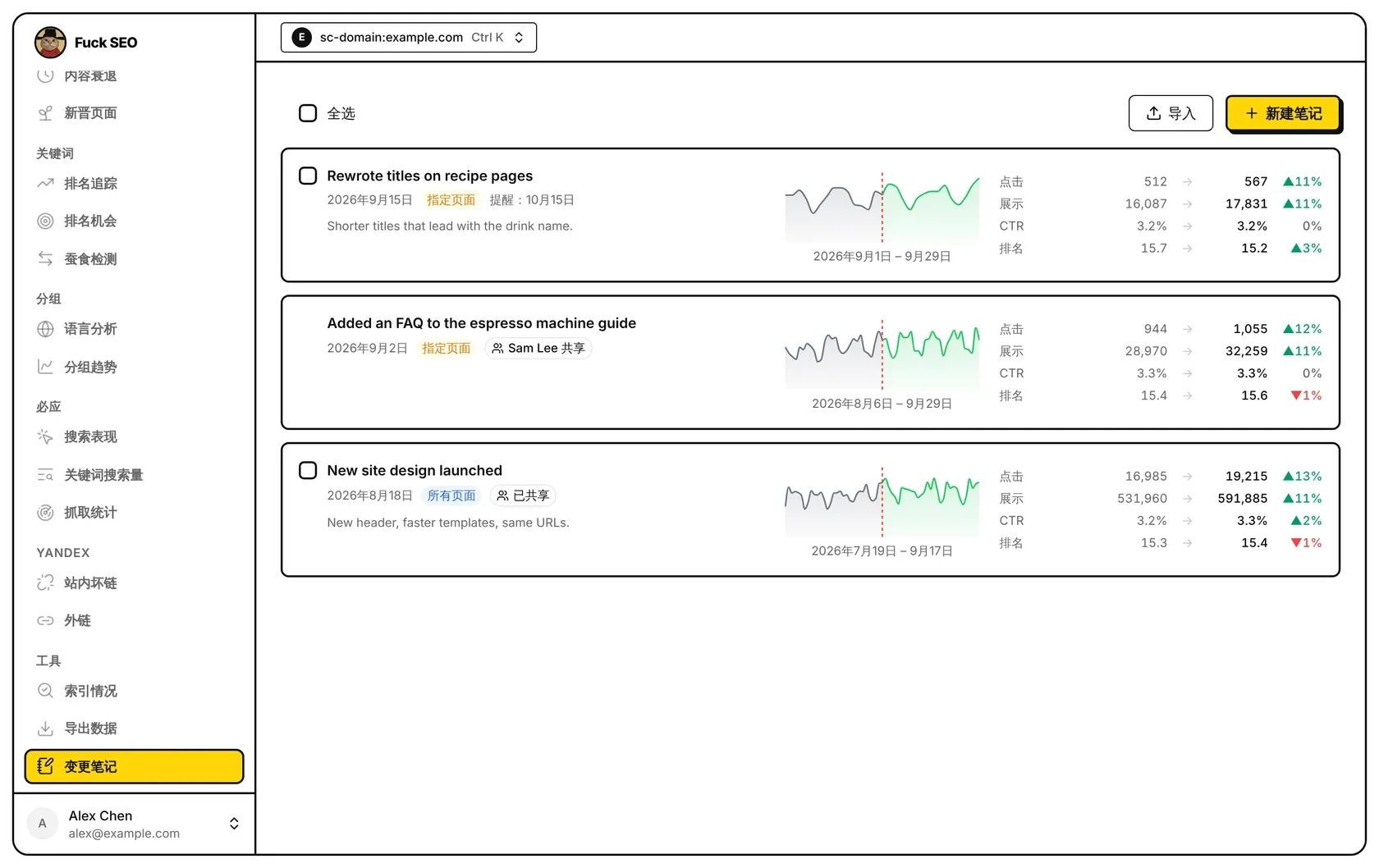
变更笔记是一份按日期记录的网站改动日志。每条笔记的卡片会对比笔记日期前后天数相同的两段 Search Console 数据,范围可以是整个网站,也可以只是笔记涉及的页面。笔记按日期从新到旧排列。
新建笔记
点 新建笔记,表单里有:
- 改动的日期,默认是今天。
- 标题(必填)和 描述(可选)。
- 适用于:所有页面,或 指定页面 并填写完整网址,每行一个。选指定页面时,对比只统计这几个网址(完全一致才算)。
- 谁能看到:只有我,或 这个网站的成员(见下文)。
- 提醒我回看:不提醒,笔记日期之后的 7 天后、14 天后、28 天后,或 选日期(最晚到今天之后 180 天)。新建笔记默认选 28 天后,除非那天已经过去;已经过去的选项不能选。
另外还有两种方式新建笔记:
- 在 仪表盘 上(电脑上,触屏设备不行),点主图上的某一天,就会打开那天的新笔记。图上日期范围内的笔记会显示成小的「N」标记,点它可以打开那条笔记。
- 在页面的详情面板里点 记一条笔记,会打开一条新笔记,已选好 指定页面 并填上这个页面的网址。
笔记卡片
- 左边:标题、日期、所有页面 或 指定页面 标签、共享标签、提醒日期和描述。鼠标移到卡片上会出现 编辑 和 删除(触屏设备上一直显示)。删除后,底部的提示里可以 撤销。
- 中间:每日点击走势,笔记日期之前为灰色,从笔记日期起为绿色,笔记日期处有一条红色虚线。下方写着覆盖的日期,鼠标移上去可以看到当天的点击数。
- 右边:点击、展示、CTR 和 排名 的「之前 → 之后」,以及变化百分比。绿色 ▲ 表示上升;排名例外,绿色 ▲ 表示排名数字变小(排得更靠前)。之前的数值为 0 时变化显示 ”—“;某一段没有展示时,CTR 和排名显示 ”—“。
前后两段怎么算
- 之后 从笔记日期的第二天开始。设了提醒就到提醒日期为止,没设就是 30 天,而且不超过已有最终数据的最新一天,所以较新的笔记「之后」那段会短一些。
- 之前 的天数与「之后」相同,到笔记日期的前一天为止。笔记当天不算在任何一段里。
- 笔记之后还没有数据时,卡片上不显示对比。
- 数字用的是网页搜索的数据。CTR 是总点击 ÷ 总展示,排名是按展示量加权的平均值。
提醒
到了提醒日期,侧边栏的 变更笔记 上会出现红色数字,首页这个站点的卡片上会显示 笔记提醒 和条数。打开变更笔记后数字清零;在你离开这个页面之前,到期的笔记排在最上面,并标有 到期。修改笔记的提醒日期会重新设一次提醒。提醒只发给笔记的作者。
与网站成员共享笔记
把 谁能看到 设为 这个网站的成员 后,在 Search Console 里对同一个资源有权限的 Fuck SEO 用户都能看到这条笔记和你的名字(Google 账号没有名字时显示邮箱)。在他们那边,卡片上标着「你的名字 共享」,查看 只能阅读;只有你能修改或删除。在你这边,卡片标着 已共享。他们看不到你的提醒日期,他们看到的卡片「之后」那段一律按 30 天算。
批量操作
勾选你自己的笔记,或者点 全选,然后选 共享、取消共享 或 删除。别人共享的笔记不能勾选。批量删除前会请你确认,删除后不能恢复。
导入笔记
导入(手机上不显示)可以从 CSV 或 TSV 文件,或者从表格里复制的几行,一次添加很多条笔记;Excel 文件请先另存为 CSV。列依次是日期、标题、说明、页面网址,说明和页面网址可以空着;有表头时按列名识别(日期 / 标题 / 说明 / 页面)。日期写成 2026-10-03 或 2026/10/3。有页面网址的行导入为 指定页面(多个网址用空格或 | 分开),没有的为 所有页面。
导入前会先预览:新增几条、重复几条(和你已有的笔记同一天、同标题)、早于 480 天的几行、格式不对的几行。只有新增的会导入,每次最多 500 条。导入的笔记不设提醒,只有你自己能看到。
日期在 480 天之前的笔记会自动删除。