Help Center帮助中心 Dashboard仪表盘
Filters and presets筛选和预设
Last updated更新于 2026-10-09
The Filter and Presets buttons in the top bar narrow the data to the queries, pages, countries or devices you choose. Filters are sent to Google with each request, so on the pages they apply to, totals, charts and tables count only the matching data.
Add a filter
- Click Filter and choose Query, Page, Country or Device.
- Pick an operator: Contains, Equals, Regex, Not contains or Not regex. Page starts on Regex, the others on Contains.
- Type a value and click Apply, or press Enter.
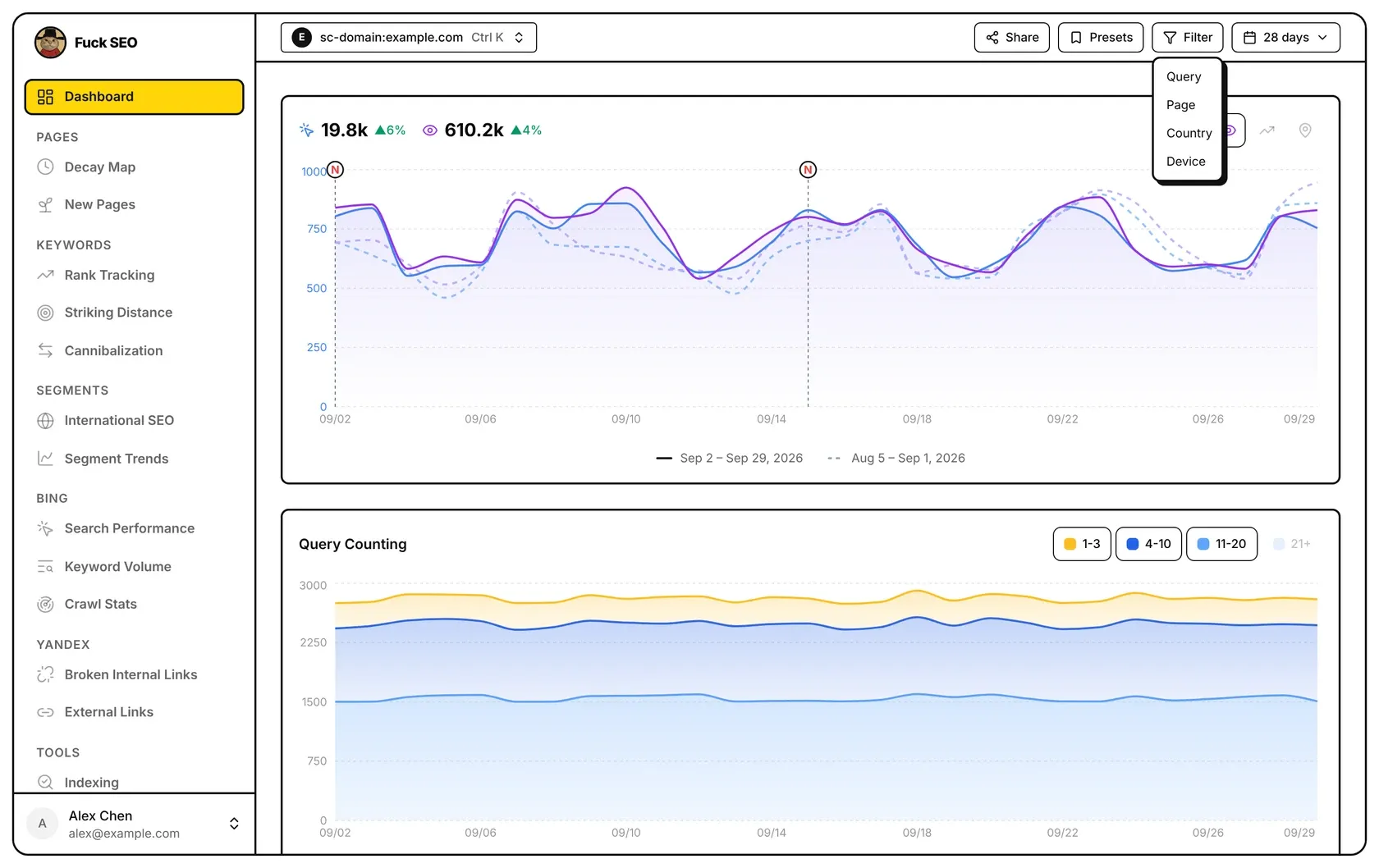
Countries use Google’s three-letter codes in lowercase, such as usa or gbr, and devices are DESKTOP, MOBILE or TABLET. You can also click a row in the Dashboard’s Country or Device table, which adds an Equals filter for it in place of any other filter on that dimension.
Regex and Not regex use Google’s RE2 syntax, which has no lookahead or lookbehind. If the expression isn’t valid, the menu says This regular expression isn’t valid and Apply stays off.
Combining and removing filters
You can add several filters, including more than one on the same dimension; a row has to match all of them. Once a filter is on, the Filter button turns yellow and its menu lists your filters under Active, with × to remove one and Add filter below.
Filters aren’t saved: they’re cleared when you switch to another site or reload the page. If a period has no data with your filters, the Dashboard says so, lists them and offers Clear filters. With the Discover search type, query and device filters are crossed out and not applied, since Discover has no queries or device breakdown.
Where filters apply
The buttons appear on every site page except Indexing, Change Notes, Settings and Changelog. Filters apply to:
- the Dashboard: totals, the main chart, the tables and Export CSV;
- Decay Map, New Pages, Rank Tracking, Striking Distance and Cannibalization;
- Segment Trends, on top of each segment’s own conditions.
They don’t apply to the Dashboard’s Query Counting chart or detail panel, to International SEO, or to Export Data.
Presets
Click Presets to see your list. Each preset shows its name, a tag for each condition (such as Query · Regex) and a description. Click one to apply it: its conditions replace any filters on the same dimensions, and filters on other dimensions stay. A preset whose conditions are all on is highlighted. Presets are saved to your account and are the same on every site.
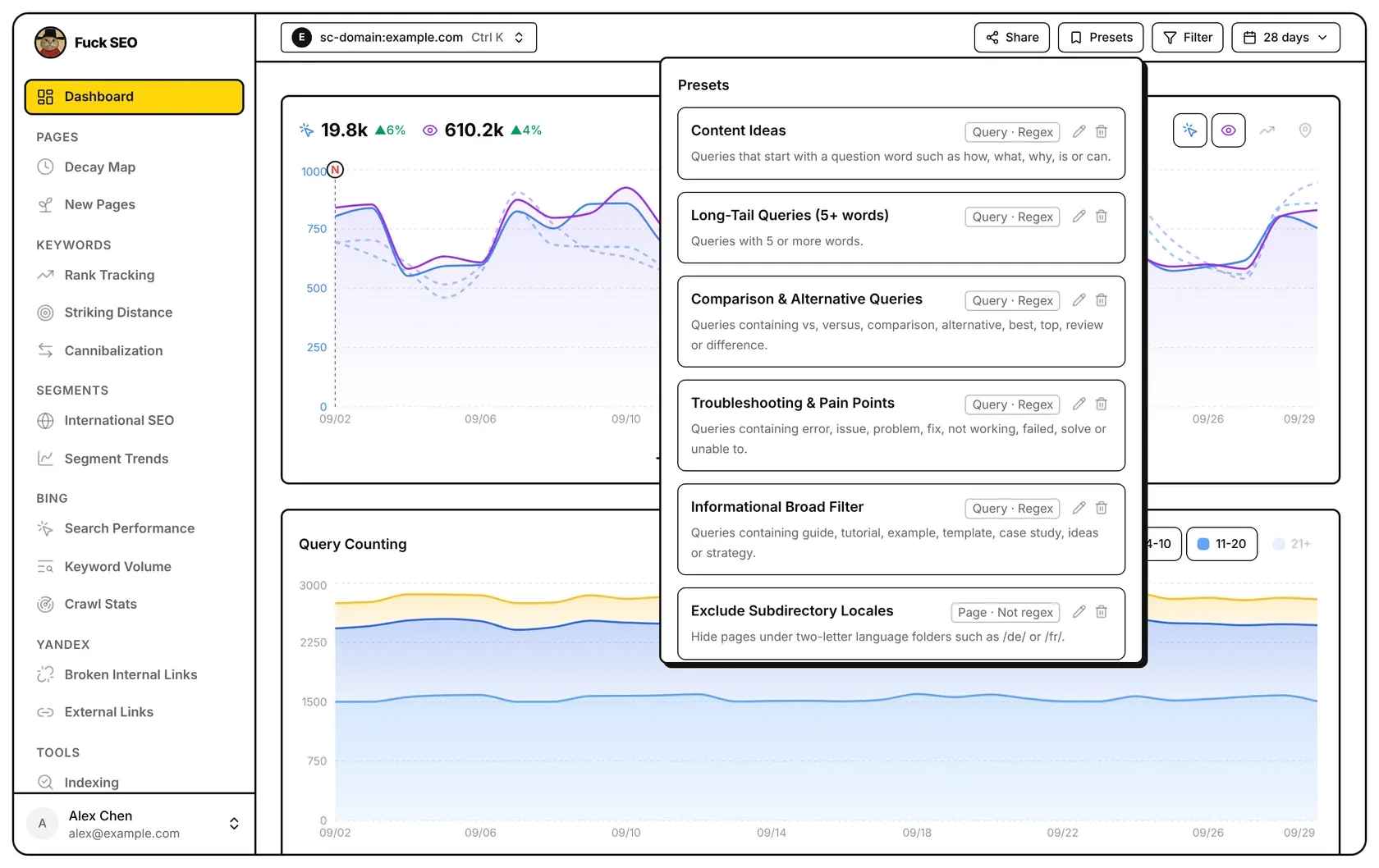
Six presets come built in:
| Preset | Condition | Matches |
|---|---|---|
| Content Ideas | Query · Regex | queries that start with a question word such as how, what, why, is or can |
| Long-Tail Queries (5+ words) | Query · Regex | queries of five or more words |
| Comparison & Alternative Queries | Query · Regex | queries containing vs, versus, comparison, alternative, best, top, review or difference |
| Troubleshooting & Pain Points | Query · Regex | queries containing error, issue, problem, fix, not working, failed, solve or unable to |
| Informational Broad Filter | Query · Regex | queries containing guide, tutorial, example, template, case study, ideas or strategy |
| Exclude Subdirectory Locales | Page · Not regex | hides pages with any two lowercase letters between slashes, such as /de/ or /fr/ |
Make and edit presets
- Add preset opens a form: Name, Description (optional) and a condition (dimension, operator and value). Add condition adds more, up to 5, and all of them must match. Click Save; new presets go at the end of the list, up to 50.
- With 1 to 5 filters on, the Filter menu offers Save this filter as a preset (with several, Save these 3 filters as a preset and so on), which opens the same form already filled in.
- The pencil edits a preset and the bin deletes it after Confirm delete. Built-in presets follow the interface language until you edit them; if you delete any, Restore built-in presets adds them back.
In a shared interactive link, viewers can apply your presets but not change them.
Presets and Segment Trends
Every preset also appears on Segment Trends, which charts each one’s clicks or impressions over time. The toolbar filters apply to every segment there.
顶栏的 筛选 和 预设 按钮可以把数据限定在你选定的查询词、页面、国家或设备上。筛选条件会随每次请求一起发给 Google,在生效的页面上,汇总数字、曲线和表格都只按符合条件的数据计算。
添加筛选
- 点 筛选,选择 查询词、页面、国家 或 设备。
- 选择条件:包含、等于、正则、不包含 或 非正则。页面默认是正则,其他默认是包含。
- 输入值,点 应用 或按回车。
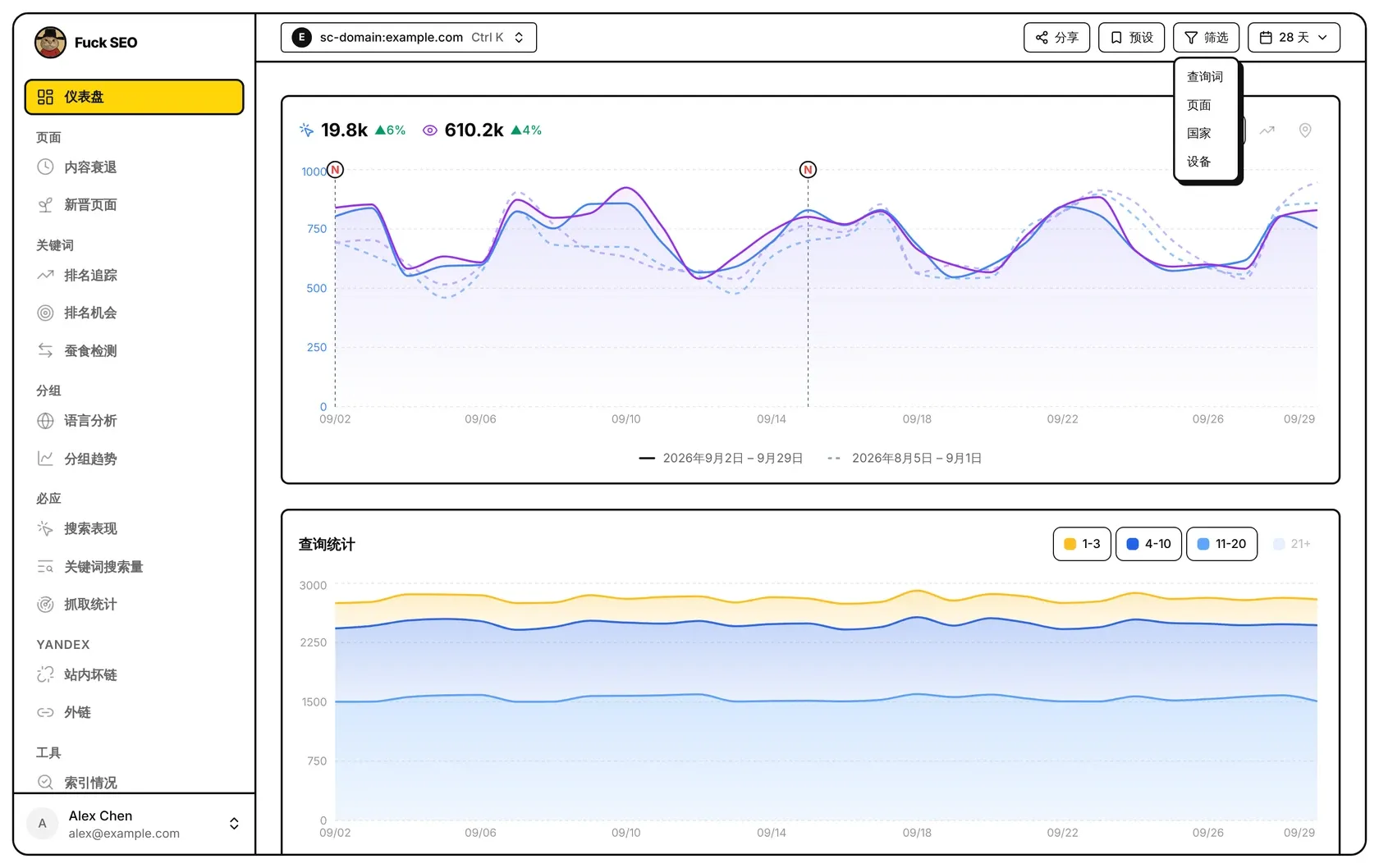
国家用 Google 的三字母小写代码,比如 usa、gbr;设备是 DESKTOP、MOBILE 或 TABLET。也可以在仪表盘的 国家 或 设备 表里直接点一行,会加上一条 等于 这一项的筛选,并替换掉同一维度原有的筛选。
正则 和 非正则 使用 Google 的 RE2 语法,不支持前后查找(lookahead / lookbehind)。表达式写错时,菜单里会提示 正则写法有误,应用 按钮也点不了。
组合与删除筛选
可以加多条筛选,同一维度也可以加不止一条;一行数据要同时满足所有条件才会保留。有筛选生效时,筛选 按钮变成黄色,菜单顶部的 已生效 下列出每条筛选,点 × 删除,下面的 添加筛选 可以继续加。
筛选不会保存:切换到其他站点或刷新页面后就清空了。加了筛选后某段时间没有数据时,仪表盘会写明这一点,列出当前筛选,并提供 清除筛选 按钮。搜索类型选 Discover 时,按查询词和设备的筛选会被划掉、不生效,因为 Discover 没有查询词,也不能按设备区分。
筛选对哪些页面生效
除了索引情况、变更笔记、系统设置和更新日志,站点的各个页面顶栏都有这两个按钮。筛选作用于:
- 仪表盘:汇总数字、主图表、明细表和 导出 CSV;
- 内容衰退、新晋页面、排名追踪、排名机会和蚕食检测;
- 分组趋势:叠加在每个分组自身的条件之上。
以下内容不受筛选影响:仪表盘的 查询统计 图和详情面板、语言分析、导出数据。
预设
点 预设 打开列表。每个预设显示名称、每个条件一个标签(比如 查询词 · 正则)和说明。点一个预设就会套用:它的条件替换同一维度原有的筛选,其他维度的筛选保留。条件全部生效的预设会高亮显示。预设保存在你的账号里,所有站点共用同一份。
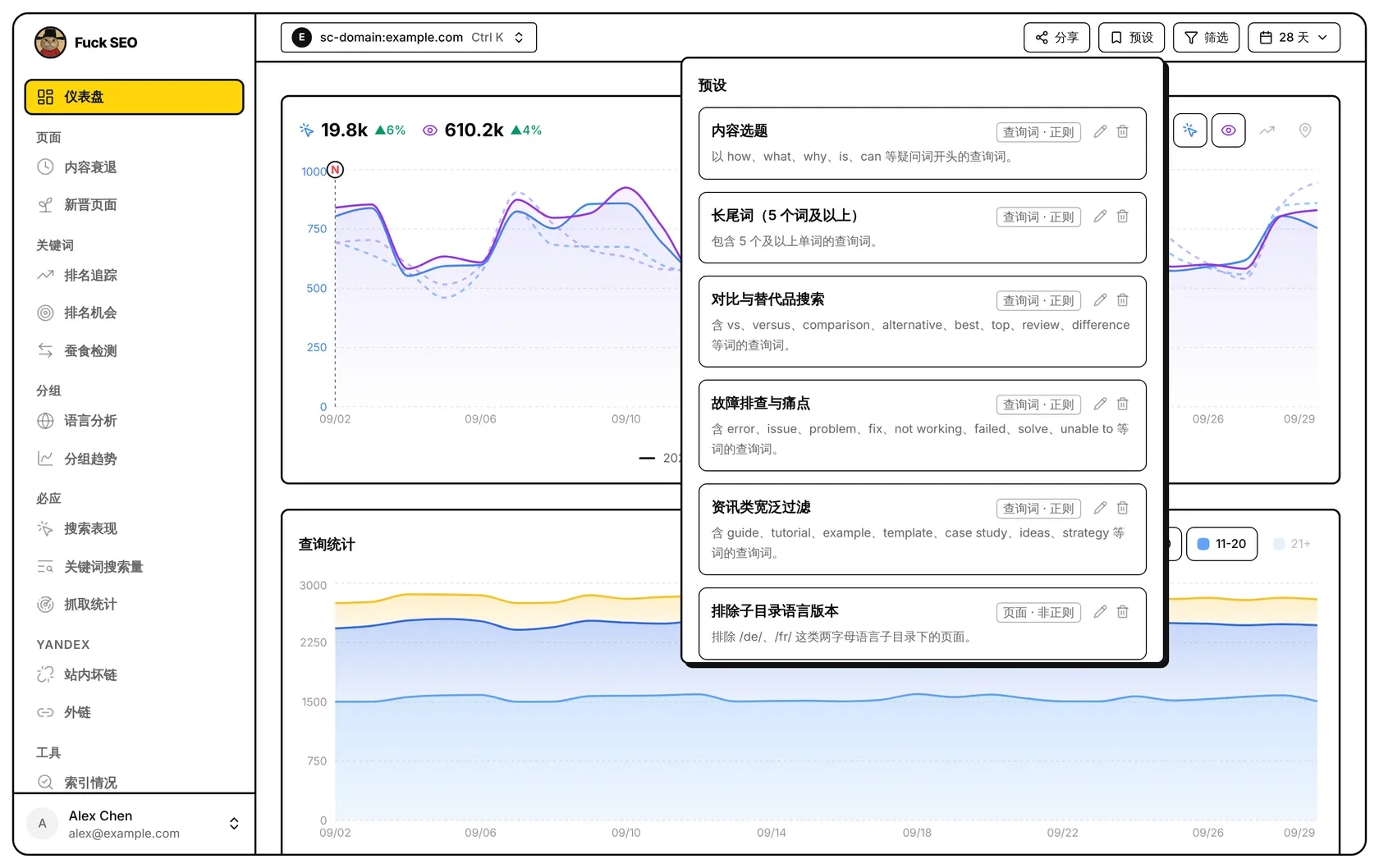
内置了 6 个预设:
| 预设 | 条件 | 匹配 |
|---|---|---|
| 内容选题 | 查询词 · 正则 | 以 how、what、why、is、can 等疑问词开头的查询词 |
| 长尾词(5 个词及以上) | 查询词 · 正则 | 包含 5 个及以上单词的查询词 |
| 对比与替代品搜索 | 查询词 · 正则 | 含 vs、versus、comparison、alternative、best、top、review、difference 等词的查询词 |
| 故障排查与痛点 | 查询词 · 正则 | 含 error、issue、problem、fix、not working、failed、solve、unable to 等词的查询词 |
| 资讯类宽泛过滤 | 查询词 · 正则 | 含 guide、tutorial、example、template、case study、ideas、strategy 等词的查询词 |
| 排除子目录语言版本 | 页面 · 非正则 | 排除网址里两条斜杠之间是任意两个小写字母的页面,比如 /de/、/fr/ |
新建和修改预设
- 点 添加预设 打开表单:名称、说明(选填),以及一个条件(维度、条件类型和值)。添加条件 可以再加,最多 5 个,要全部满足。点 保存,新预设排在列表最后,最多 50 个。
- 有 1 到 5 条筛选生效时,筛选 菜单里会出现 把这个筛选存为预设(多条时是 把这 3 个筛选存为预设 这样的写法),点它打开同一个表单,条件已经填好。
- 铅笔图标编辑,垃圾桶图标删除(再点 确认删除)。内置预设在你修改之前会跟随界面语言显示;删掉内置预设后,点 恢复内置预设 可以加回来。
别人打开你的互动分享链接时,可以套用你的预设,但不能修改。
预设和分组趋势
每个预设也会出现在 分组趋势 页,按时间显示每个预设的点击或展示曲线。顶栏的筛选在那里对每个分组都生效。